
Install Pendid on your phone or computer
Install Pendid directly from your browser on Android, iPhone, iPad or Windows, then open the studio like a standalone app.

Keep the Pendid icon on your home screen or desktop.
Open Pendid in its own window without the usual browser chrome.
Install directly from Chrome, Edge or Safari depending on your device.
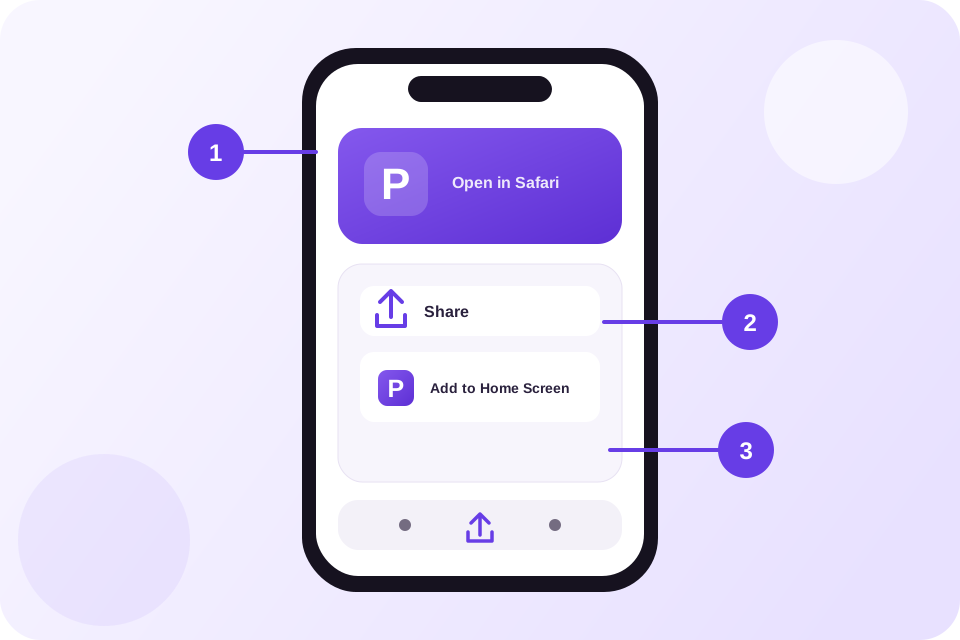
Add Pendid to your Home Screen
- Open Pendid in Safari.
- Tap the Share button.
- Choose Add to Home Screen, then tap Add.
On iOS, installation is handled through Safari's Share menu instead of an automatic install prompt.
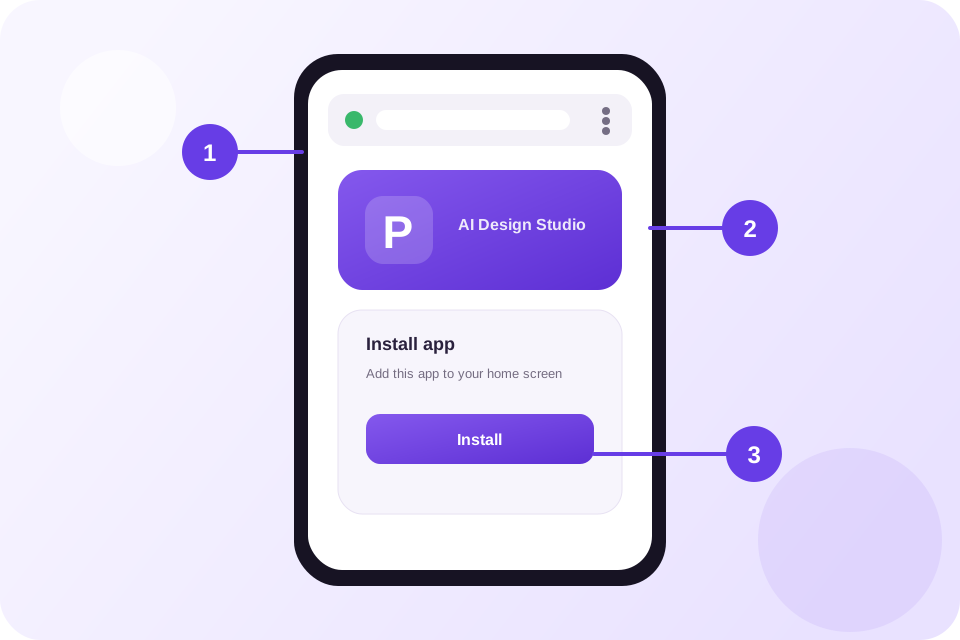
Install Pendid on Android
- Open studio.pendid.com in Chrome.
- Use the Pendid install button or the browser menu.
- Confirm Install app or Add to Home screen.
If direct installation is available, your browser will show the official install prompt.
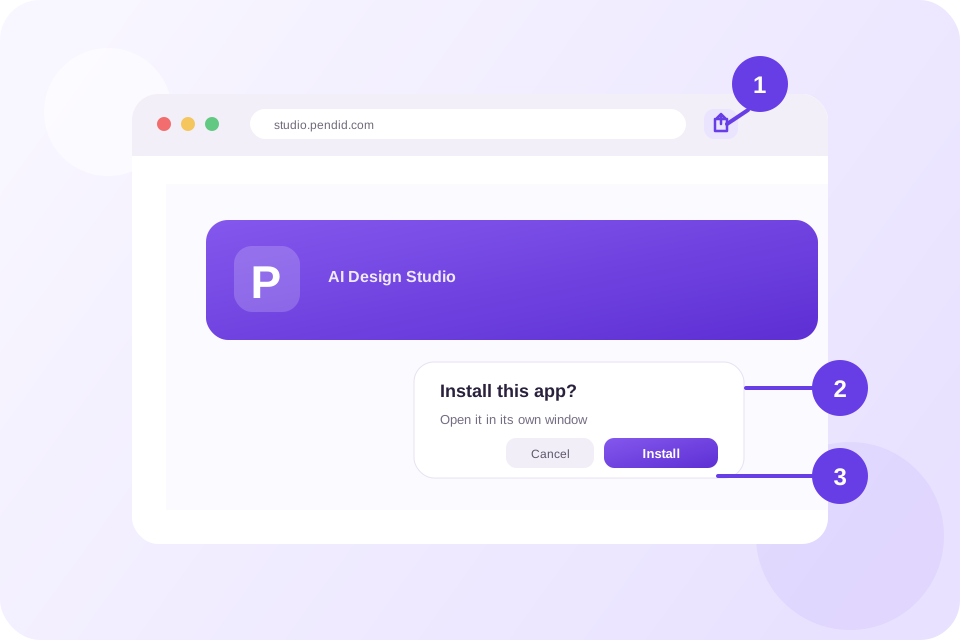
Install Pendid on Windows
- Open Pendid in Chrome or Microsoft Edge.
- Select the install icon in the address bar or choose Install Pendid.
- Confirm installation to add Pendid to Windows.
After installation, you can launch Pendid like a standalone app from the Start Menu or taskbar.
Your Pendid tools stay one click away
Pendid installation guide
Is Pendid free to install?
Yes. Installing Pendid on your device is free and does not require the App Store or Google Play.
Do Pendid AI tools work offline?
No. Pendid can open like a standalone app, but image generation, editing and other connected tools require an internet connection.
Why do I not see an install button?
Pendid may already be installed or your browser may not support direct installation. Use the device-specific steps on this page instead.
How do I remove Pendid?
On Android and Windows, uninstall it from your system apps. On iPhone or iPad, press and hold the icon and choose Remove App.